

RESOURCES HUB
Premium
Description:
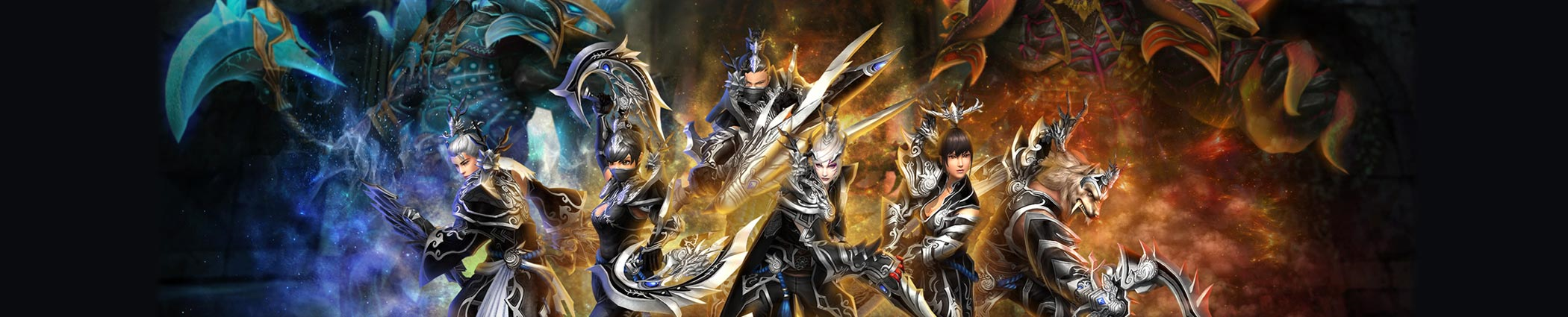
This topic is a clean checklist for integrating a fire-themed weapon set into a Metin2 client.
Visual direction:
Fire weapons usually look best when the glow is controlled. Strong color is fine, but the effect should not hide the weapon shape or make PvP unreadable.
Recommended files:
- Weapon .gr2 models
- Fire or ember .dds textures
- Optional effect files
- Inventory icons
- item_list.txt entries
- item_proto rows
Integration steps:
1. Add all models and textures to the client pack.
2. Register each weapon path in item_list.txt.
3. Add matching item_proto entries for every vnum.
4. Add icons and confirm the inventory preview.
5. Test the weapon on every supported class.
6. Check if the fire effect clips through armor or mounts.
Common fixes:
- Lower effect size if the weapon covers the character.
- Rename texture paths if the model loads white.
- Keep separate icons for each upgrade level if the set has progression.
- Test nighttime and dungeon maps because glow can look different there.
This topic is a clean checklist for integrating a fire-themed weapon set into a Metin2 client.
Visual direction:
Fire weapons usually look best when the glow is controlled. Strong color is fine, but the effect should not hide the weapon shape or make PvP unreadable.
Recommended files:
- Weapon .gr2 models
- Fire or ember .dds textures
- Optional effect files
- Inventory icons
- item_list.txt entries
- item_proto rows
Integration steps:
1. Add all models and textures to the client pack.
2. Register each weapon path in item_list.txt.
3. Add matching item_proto entries for every vnum.
4. Add icons and confirm the inventory preview.
5. Test the weapon on every supported class.
6. Check if the fire effect clips through armor or mounts.
Common fixes:
- Lower effect size if the weapon covers the character.
- Rename texture paths if the model loads white.
- Keep separate icons for each upgrade level if the set has progression.
- Test nighttime and dungeon maps because glow can look different there.
